Cloud Computing: What It Is and How It Works
Simple explanation of public, private, and hybrid cloud and benefits for businesses
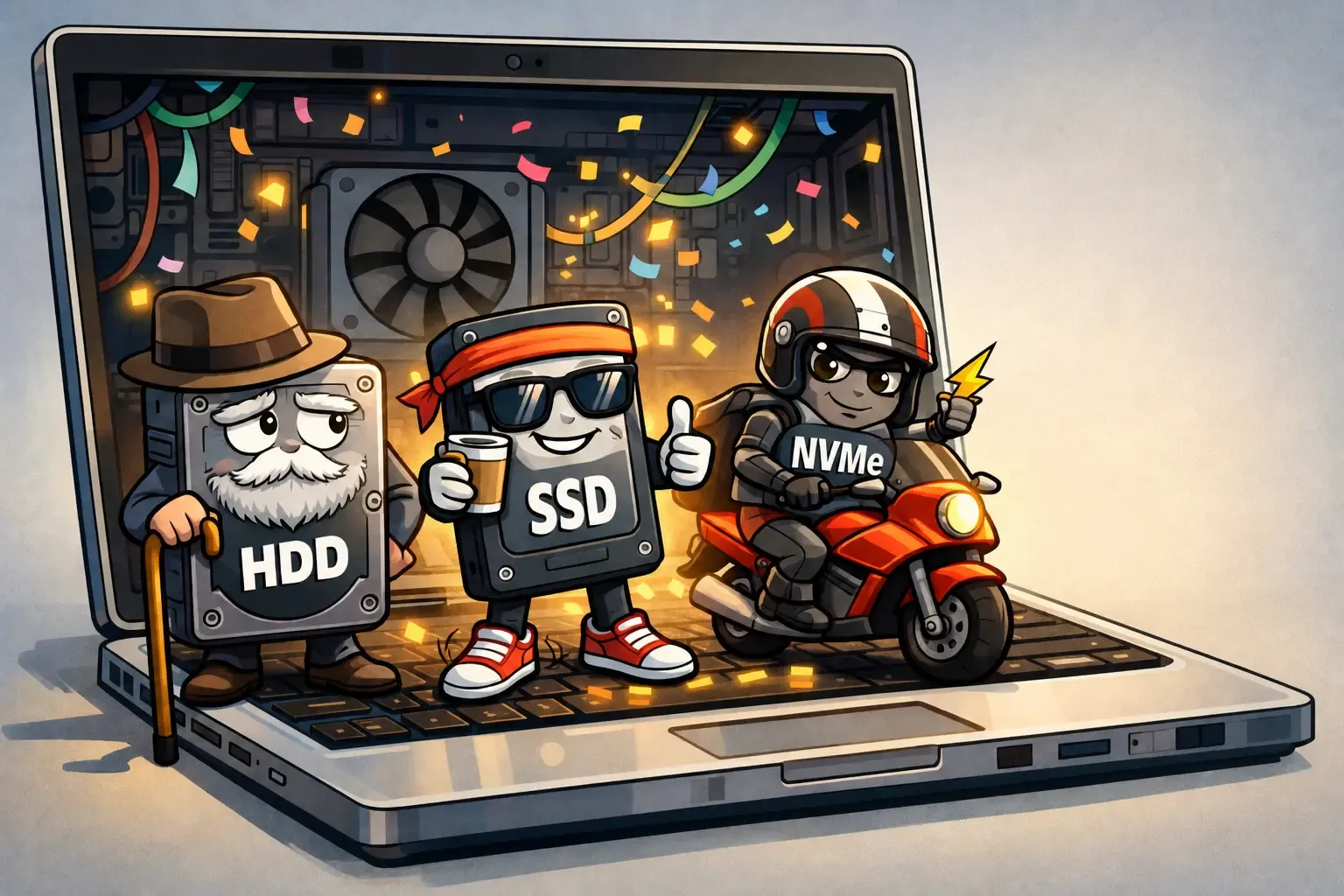
A clear explanation of the most common storage types, how each one actually works, and what the real-world performance differences are. A practical overview to help you understand what suits everyday work, where the difference is genuinely felt, and how to choose the right solution without getting lost in technical terminology.
When a computer is running slow, the first finger always points at the RAM. If that's not it, then the CPU gets the blame. But in many cases, the real culprit is quiet, small, and buried deep inside: storage.
Storage is where the computer keeps its files, applications, and operating system - everything that makes it "remember" who it is. And this is exactly where the confusion begins.
HDD - The Veteran: A drive with mechanical moving parts inside. Cheap, high-capacity, but slow. If your computer makes noise, takes forever to boot, and seems to stop and think before every action - chances are it has an HDD. Great for long-term archiving. Not ideal for day-to-day work.
SSD - The New Standard: No moving parts. Significantly faster and completely silent. Most modern computers already run on SSDs, and it's an upgrade you feel immediately. For the vast majority of employees - this is the baseline.
NVMe - The Express Lane: Still an SSD, but connected to the motherboard through a much faster channel. The result: near-instant load times, smooth handling of large files, and fewer small delays that quietly accumulate throughout the day. Who needs this? Developers, video editors, and anyone working intensively for long stretches.
It's not some deliberate slowdown conspiracy - here are three common culprits:
- Storage that's nearly full - even a fast drive struggles when it's out of breathing room
- A drive that's underpowered for the task at hand
- A mismatch between what the employee is doing and what the computer can realistically handle
And no, this doesn't automatically mean you need a new computer.
Standard office work - a quality SSD
Development, design, video - NVMe
Long-term archiving - HDD
And most importantly: choose based on how the work actually gets done - not based on whichever name sounds most impressive.
Good storage doesn't "feel" fast. It simply makes you stop noticing it altogether. And when you stop noticing your computer - that's a sign it's doing exactly what it should.
Simple explanation of public, private, and hybrid cloud and benefits for businesses
Everything you need to know about USB-C standard - cable types, charging, data and video transfer
Understanding the differences between CPU and GPU and when each matters